Real app example
Offline face swap: a real iPhone example, step by step
By the Morphiqo team · Published · Updated
Morphiqo swaps faces in photos and videos locally on iPhone, iPad and Mac. No Morphiqo account or photo upload is required. Installation and initial setup need internet; processing locally stored media can then run offline. Here is a real still-photo result from the native iOS app, alongside the two original example portraits.
Before you start
For people comparing on-device face-swap apps or checking what source, target and result mean before downloading.
iOS or iPadOS 17 or later. For Mac, macOS 14 or later. Download processing files and your media first. Preview is free; exporting requires Pro. Purchases and restores need internet.
Use your own images or get permission from the people involved. Keep your originals and review the result before sharing.
See an actual result
One portrait. A different face in the same photo.
The source portrait supplies the face. The target supplies the scene. The result below was processed by Morphiqo’s native iOS face-swap pipeline in the iOS Simulator.



Both input portraits are AI-generated fictional adults. The result is an actual app render, without generative retouching. This example demonstrates one still photo, not video consistency or processing speed. Results vary with lighting, pose and settings.
See the simulator screenshot and reproduce the example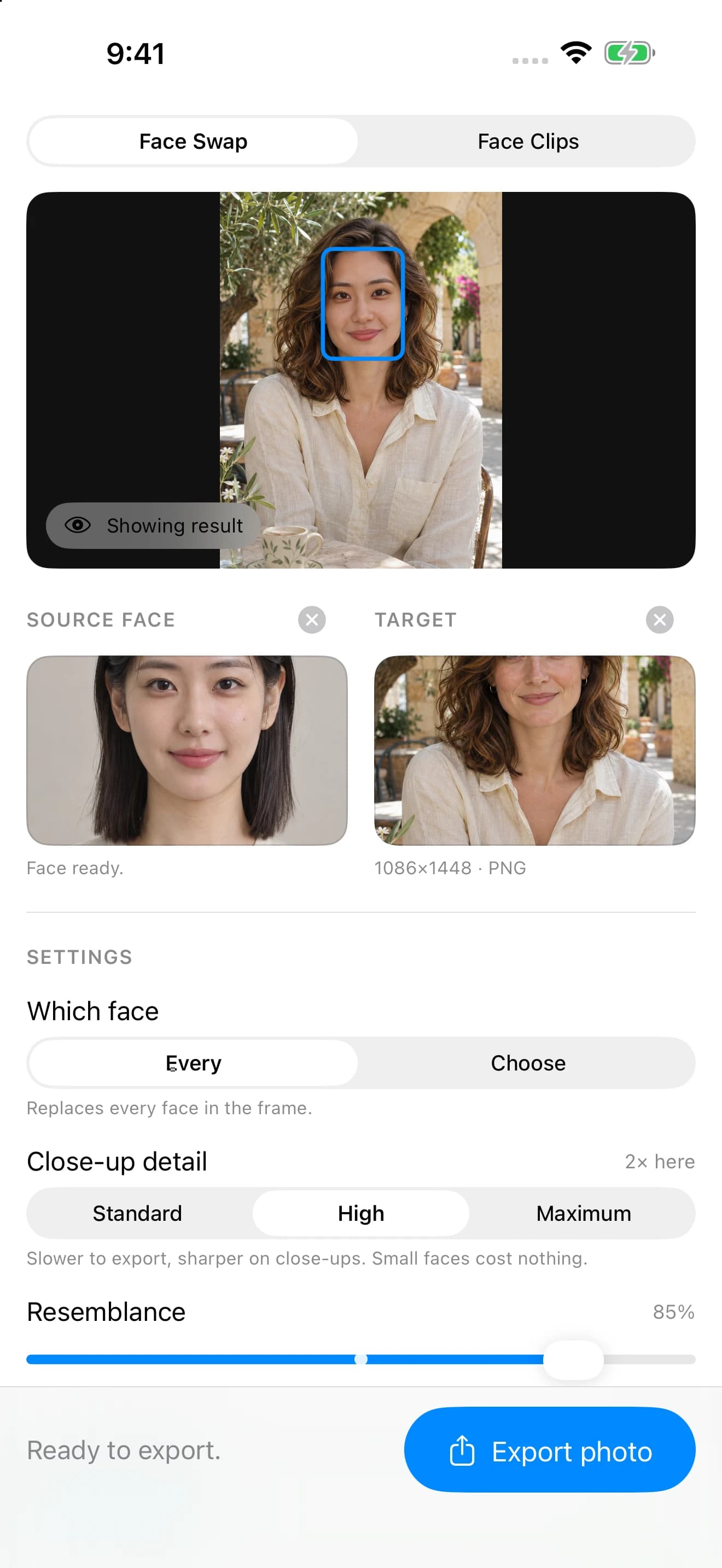
1Start with the two original portraits
The source is a front-facing portrait with even lighting. The target is a different person at a garden cafe. Both were generated as fictional adult portraits for this demonstration, so no real customer photos are used.
Download the example inputs from our media kit, or use your own photos with permission. Keep the originals so you can compare the actual change.
2Prepare Morphiqo and your local media
Install the app and complete its initial setup while online. Save both pictures on your device. If a photo is only stored in iCloud, download its original before disconnecting.
No Morphiqo account registration is required. Apple manages App Store downloads and purchases separately. Confirm any export entitlement while online before relying on it during travel.
3Choose source, target and preview
Add the first portrait under Source face and the garden photograph under Target. The source supplies the replacement face; it does not replace the target scene or clothing.
This example uses a resemblance setting of 85%. Compare the original and result, especially the eyes, face outline and lighting. The screenshot was captured in the iOS Simulator using the real native pipeline; it is not an AI-generated interface or a performance benchmark.
4Check offline use on your own device
After setup, turn off Wi-Fi and mobile data, then reopen locally stored media and try a preview. This is a practical check you can repeat on your own device. The simulator example itself is not a measured airplane-mode test.
There are no per-swap credits and no fixed app-imposed video-duration cap in the native app. Long or high-resolution clips still need enough storage, memory and processing time. Review several video frames, and keep the app in the foreground during export.
If something does not work
- Why does my result look different?
- Lighting, pose, source detail, settings and app version can change the result. This single example does not guarantee the same quality on other photos or videos.
- Can I use these photos in a review?
- The media kit provides the two original inputs, the native result and the real simulator screenshot for reviews of Morphiqo. Clearly label the inputs as AI-generated and the result as edited.
Still stuck? Contact support with your device and what happened.
Common questions
Was the after photo generated by an image model?
No. Only the two original input portraits were AI-generated. The after image was rendered by the native Morphiqo face-swap pipeline in the iOS Simulator.
Does offline mean no internet is ever needed?
No. Installation, initial setup, purchases and restores need internet. Face-swap processing can run offline once setup is complete and the media is stored locally.
Do I need to register or buy credits?
No Morphiqo account registration or per-swap credits are required. Previewing is free; exporting edited media requires Pro. The current purchase options are shown in the app.
Is there a video duration limit?
The native app does not impose a fixed video-duration cap. Available memory, storage, device performance and the input file still limit what can finish successfully.
Read the privacy policy for details about the native apps.