iPhone and iPad
How to swap faces offline on iPhone without logging in
By the Morphiqo team · Updated
Morphiqo swaps faces on your iPhone or iPad without creating a Morphiqo account or uploading your media. Download the app and finish its initial setup while connected to the internet. Once setup is complete and your photos or videos are available on the device, face swapping can run offline.
Before you start
iOS 17 or iPadOS 17 or later. Internet access for installation and initial setup; enough free storage for the app, setup files and your media.
Use your own images or get permission from the people involved. Keep your originals and review the result before sharing.
1Finish setup before going offline
Install Morphiqo from the App Store, open it and complete the initial download. Wait until the editing screen is ready before disconnecting. This setup brings the processing files onto your device; it does not upload your photos.
If your pictures or clips are stored only in iCloud, open them while online and make sure their originals are available locally. Installing Morphiqo does not download your entire photo library.
2Choose the face and the media to edit
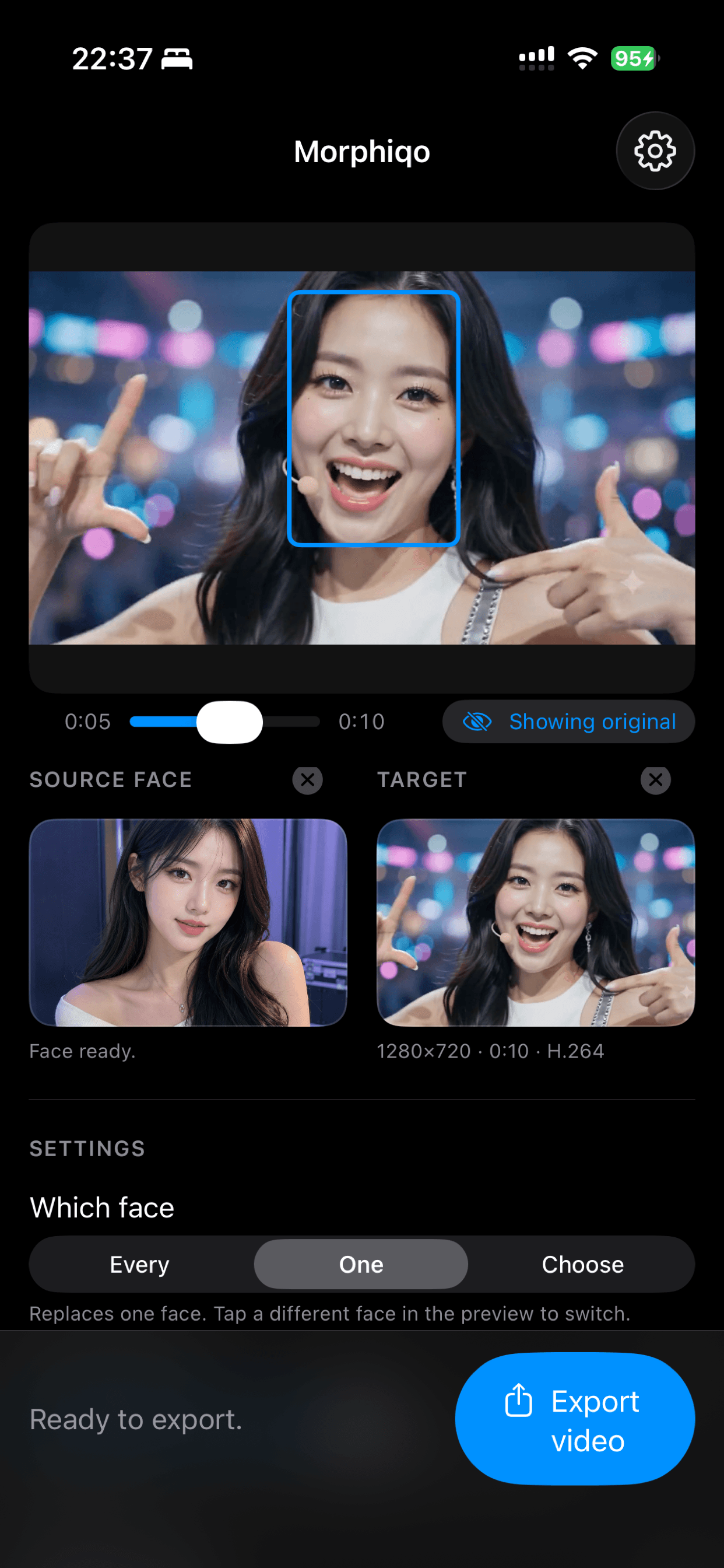
In Source face, choose a clear portrait of the person whose face you want to use. Start with a well-lit image where the face is visible rather than covered or turned far away.
In Target, choose the photo or video you want to change. The source is the replacement face; the target is the scene that receives it. Use your own media or material you have permission to edit.
3Select the person and inspect the preview
Use Which face to decide who is replaced. One targets one face; Choose lets you select particular people when the scene contains several faces. Check the selected face in the preview before exporting.
For a video, move through the timeline and inspect several moments, especially where the person turns or something covers their face. Switch between the original and result to judge the edit. A good result on one frame does not guarantee the entire clip looks the same.
4Check offline use, then export when ready
After setup, disconnect from the internet and try a locally stored photo or short clip. If you use Airplane Mode, also check that Wi-Fi is off: it can remain enabled. The face-swap processing runs on the device.
Previewing is free. Exporting the edited photo or video requires Morphiqo Pro. Complete any purchase or restore while online before relying on it away from a connection, and check that the app recognises your Pro access. No separate Morphiqo login is required, but Apple manages App Store downloads and purchases through your Apple Account.
When exporting a video on iPhone or iPad, keep Morphiqo on screen. Leaving the app pauses the export until you return. Inspect the saved result before sharing it, and identify it as edited where that matters.
If something does not work
- The app is asking for a download
- The initial setup may not be complete, or a processing component you selected may still need installation. Reconnect and finish the requested setup before trying offline again.
- A photo or video will not open offline
- Check whether its full original is stored in iCloud rather than on the device. Download or open it while connected, then try again offline.
- The result looks uneven
- Try a clearer source portrait, a better-lit target and a short clip with fewer obstructions. Check the chosen person and several preview frames before changing more settings.
Still stuck? Contact support with your device and what happened.
Common questions
Does no login mean I do not need an Apple Account?
No Morphiqo account is required. The App Store and any Pro purchase are managed by Apple and may require your Apple Account.
Can I install Morphiqo for the first time without internet?
No. Installation and initial setup require internet access. Offline face swapping is available after setup using media already on the device.
Is exporting free?
You can preview a face swap for free. Saving an edited photo or video through export requires Morphiqo Pro. Check the current options and prices inside the app before purchasing.
Read the privacy policy for details about the native apps.