Privacy and offline use
Does face swapping require uploading your photos?
By the Morphiqo team · Updated
Face swapping does not have to require a photo upload. The native Morphiqo apps for iPhone, iPad and Mac process your selected media on the device. You do not create a Morphiqo account or send your photos and videos to a remote editing service. Internet access is needed for installation, initial setup and App Store purchase or restore actions.
Before you start
These instructions describe the native App Store apps: iOS or iPadOS 17 or later, and macOS 14 or later. Prepare locally available media before going offline.
Use your own images or get permission from the people involved. Keep your originals and review the result before sharing.
1Separate downloading setup files from uploading media
Downloading brings the files needed to run Morphiqo onto your device. Uploading would send your photo or video somewhere else. Morphiqo needs an initial setup download, but the native apps do not upload your selected media for face swapping.
An initial internet requirement therefore does not mean your photos are being processed in the cloud. App installation, updates, purchases and restores are also different from the editing process.
2Make your originals available locally
Check that the portrait and target media are actually on the device. A photo-library thumbnail or a file in a cloud folder can represent an original that still needs downloading.
Open or download the complete media while online before an offline session. Your iCloud or other storage settings are separate from Morphiqo; local processing does not change how those services back up or synchronise your library.
3Try a local preview after disconnecting
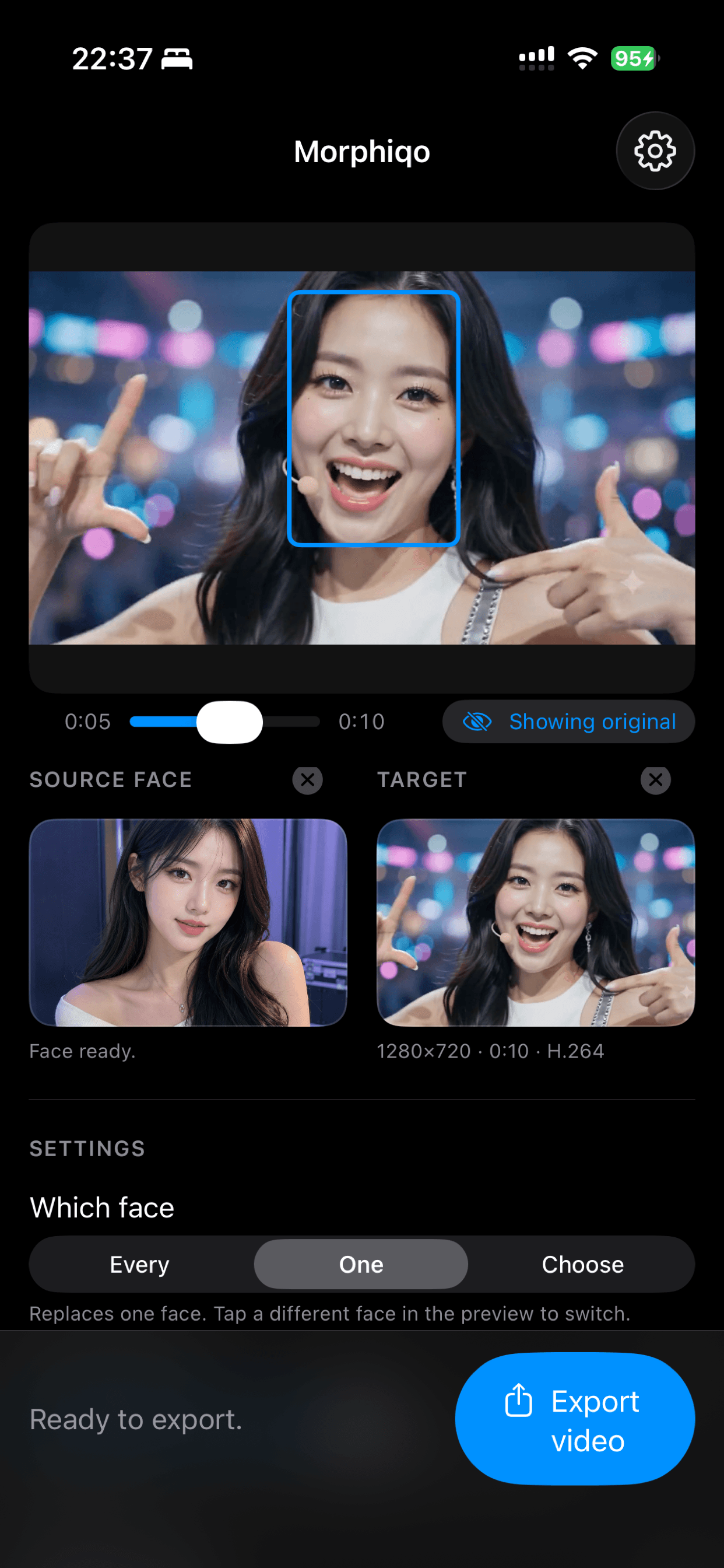
Finish Morphiqo setup, choose a Source face portrait and a Target photo or short video, then disconnect from the internet. On iPhone, check Wi-Fi as well as mobile data if using Airplane Mode.
Inspect the swapped preview on your device. You do not need a Morphiqo account. Previewing is free; export requires Pro. Purchase or restore Pro while online before relying on export during a disconnected session.
4Decide what to keep and share
On-device editing keeps processing local, but the resulting file is still sensitive if it contains someone’s face. Consider where you save it and which apps or cloud folders you share it through.
Use faces with permission and label edits where needed. Morphiqo’s native apps can retain source portraits for reuse on the device; you can remove saved faces in Settings. The privacy policy explains that storage separately from the face-swap processing.
If something does not work
- The original downloads when I open it
- The media may be stored in iCloud or another cloud service. Prepare the full local file before disconnecting; this is separate from Morphiqo uploading a file.
- I need to restore a purchase
- Restore through the app while connected so the App Store can check the purchase. A billing action needing internet is different from sending media to a face-swap server.
- I want to remove previously used portraits
- Use the saved-face removal controls in Morphiqo Settings. Also consider copies of the original and exported media in your photo library or other storage.
Still stuck? Contact support with your device and what happened.
Common questions
Is no upload the same as never using the internet?
No. The native apps need internet for installation and initial setup, and App Store actions such as purchasing or restoring Pro. Face-swap processing is local and does not upload your selected photos or videos.
Does local processing stop my photo library syncing to iCloud?
No. Morphiqo does not change your photo-library or cloud-storage settings. Check those separately if you do not want originals or exports synchronised by another service.
Will editing locally guarantee a perfect face swap?
No. Privacy and image quality are different questions. Lighting, head angle, obstructions, source portrait quality and your selected settings can affect the result. Inspect the preview before exporting.
Read the privacy policy for details about the native apps.